How to Map with DJI Drones: Drone Photogrammetry App Tutorial
Welcome to the SkyeBrowse flight tutorial. In this guide, we’ll walk you through the process of using the SkyeBrowse flight app for flying drones. The app offers two automated flight modes: SkyeBrowse Orbits for smaller scenes and WideBrowse Grids for larger areas. WideBrowse also includes Cross Grid and Side Scan options for advanced coverage.
If you’re looking to upload videos captured from your cell phone or non DJI/Autel drones, check out our Universal Upload Tutorial.
In addition, you can explore our use cases to learn about how SkyeBrowse is deployed in real world scenarios.
Summary
- Choose SkyeBrowse (orbits for small scenes under 1 acre) or WideBrowse (grids for larger, multi-acre areas)
- For WideBrowse, optionally enable Cross Grid for perpendicular coverage or Side Scan for vertical facades
- Manually fly above the object you want to map out. Make sure to fly above any potential obstacles!
- Check the flight path in the map view
- Press “Start”
- Upload the video to app.skyebrowse.com
Equipment and App Compatibility
Supported Devices: SkyeBrowse is available for iOS, Android, and Smart Controllers. You can see the entire list of supported devices and drones here.
Supported Drones: The flight app is compatible with Autel and DJI drones. Fully supported drones can run both SkyeBrowse Orbits and WideBrowse Grids. Semi-supported drones (such as DJI Mini, Mini 2, and Air 2S) can run SkyeBrowse Orbits only, so use Universal Upload for large area mapping with these models. If your drone is not supported by the flight app at all, you can still create 3D models with Universal Upload using manual flight.
Autel Users: The SkyeBrowse Flight App for Autel drones requires iOS only. Supported models include the Autel Evo II Pro, 6K, 8K, Dual, and 640T (V1 and V2).
Getting Started
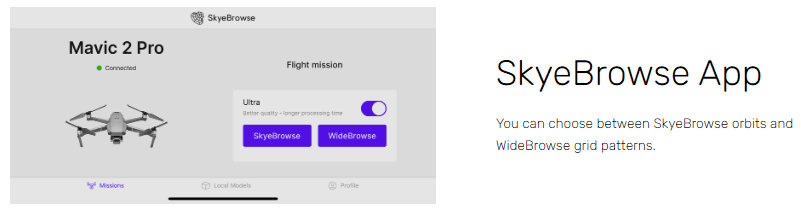
Installation: Download the SkyeBrowse flight app.
Connecting to Your Drone: Open the SkyeBrowse app and connect it to your drone. Your drone will show up on the app. Make sure DJI Pilot, Autel Explorer, or other third party apps are closed in the background.
Recording in 4K (for subscription customers): Activate the ‘Ultra’ toggle to record in 4K, enhancing the quality of the 3D models. Keep in mind 4K videos are significantly larger in file size compared to 1080p videos. Freemium SkyeBrowse users will not see any improved quality with 4K compared to 1080p videos.
Flying SkyeBrowse Orbits
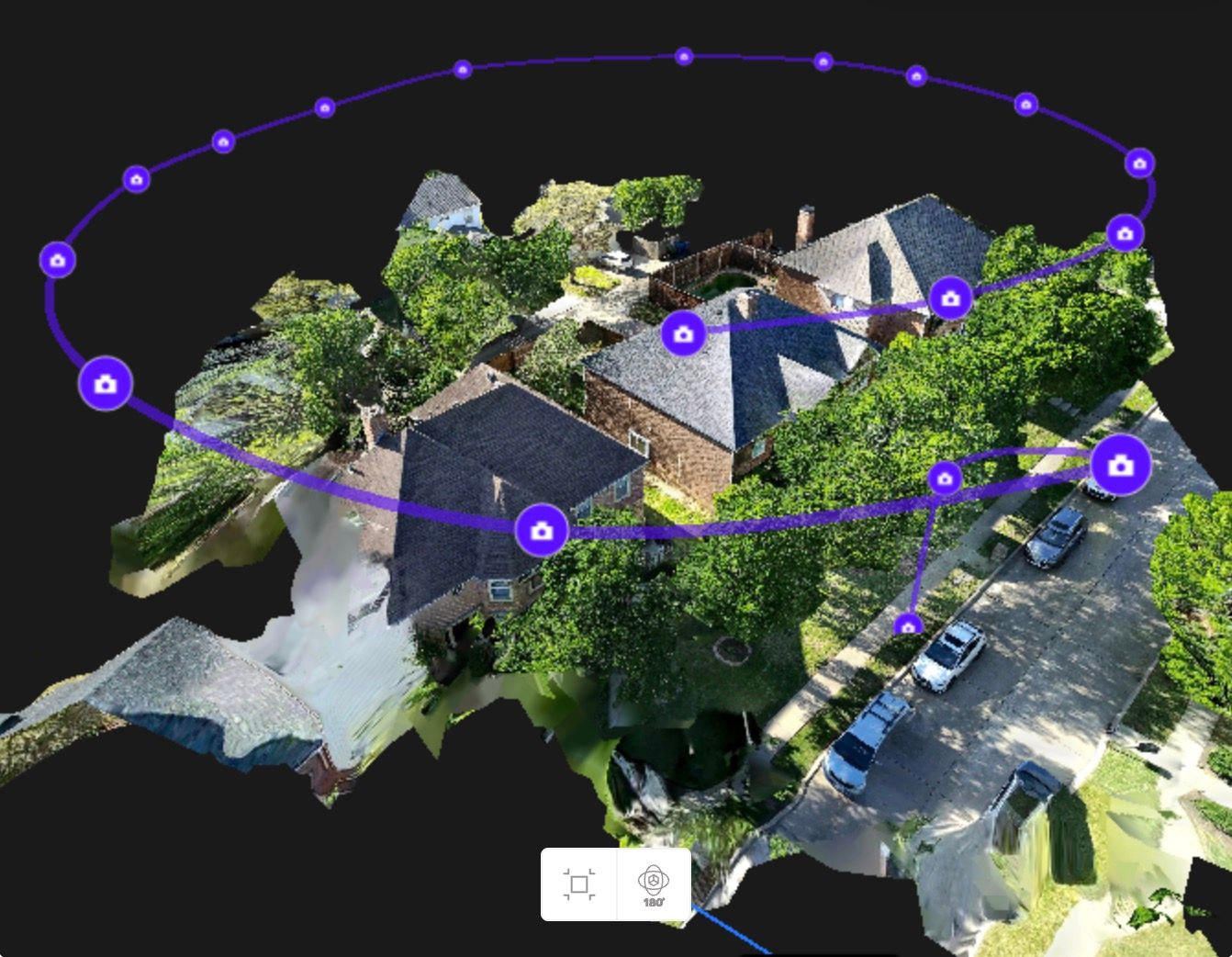
SkyeBrowse Orbits are designed for small scenes under 1 acre. The drone flies two automated circular orbits around your target, capturing continuous video for detailed 3D reconstruction.
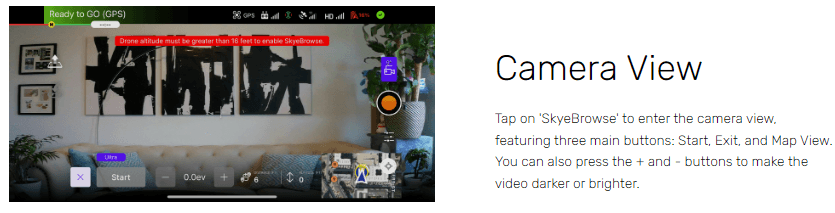
1. Accessing Camera View: Tap on ‘SkyeBrowse’ to enter the camera view, featuring three main buttons: Start, Exit, and Map View.
2. Take Off: Make sure your surrounding environment is clear and fly above the object that you want to map out.
3. Adjusting Brightness: Auto brightness usually works, but if the video is too bright or too dark, use the plus and minus buttons at the bottom center to adjust video brightness.
4. Expanding Map View: Tap the map view on the bottom right to see two circles that define the area for 3D modeling. The size of these circles increase when the drone altitude is higher and decrease when the drone altitude is lower.
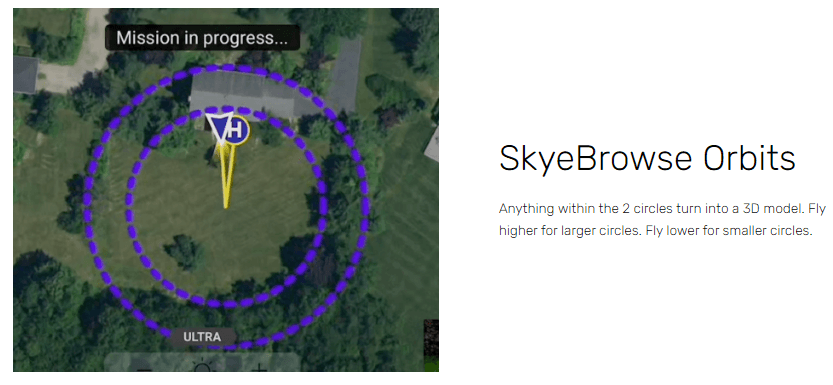
5. Ensure safety: Make sure your drone is above any obstacles. Our automated flights will never fly lower than the current drone altitude.
6. Starting the Flight: Once positioned, tap ‘Start’ to begin. The drone will calibrate its cameras and start recording, covering two orbits for detailed capture.
7. Emergency Override: If necessary, the automated flight can be cancelled by pressing the “stop” button.
8. Flight Completion: The drone indicates the end of the flight with a tactile vibration and will hover in place.
Flying WideBrowse Grids
WideBrowse is built for mapping larger, multi-acre areas. Instead of orbiting a single point, the drone flies an automated grid pattern across the area you define, capturing continuous nadir (downward-facing) video for orthomosaic and 3D model generation.
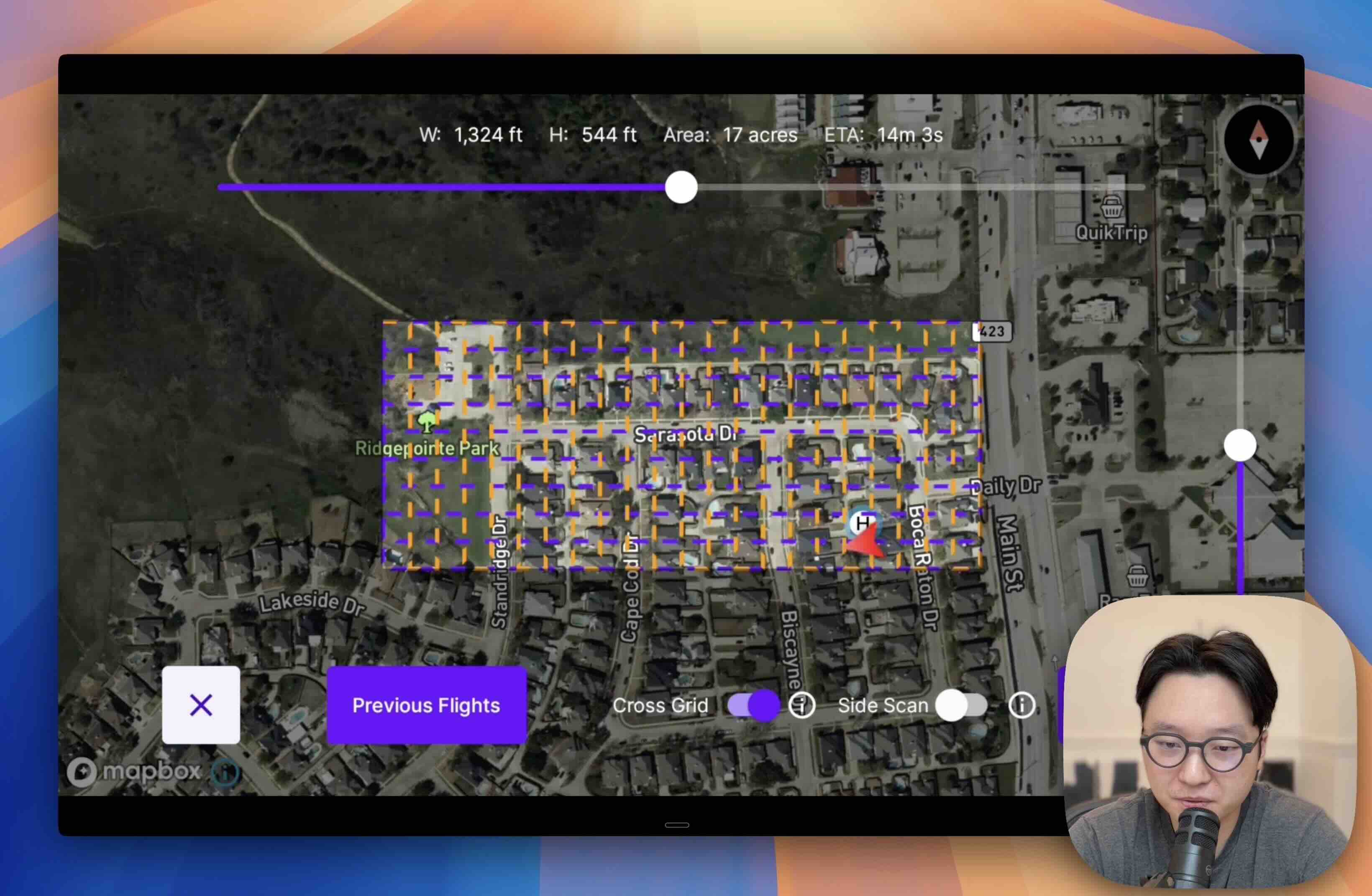
1. Accessing WideBrowse: Tap on ‘WideBrowse’ from the main screen to enter grid flight mode.
2. Take Off and Position: Fly your drone above the area you want to map. The altitude you set determines the ground coverage and resolution: higher altitude covers more area, and lower altitude captures more detail.
3. Define the Grid Area: Use the map view to see the grid pattern the drone will fly. Adjust your position and altitude to cover the target area.
4. Start the Grid Flight: Tap ‘Start’ and the drone will fly the automated grid pattern, recording video throughout the entire mission.
5. Flight Completion: The drone will hover in place when the grid is complete.
Cross Grid
Cross Grid adds a second perpendicular flight path after the initial grid pass. This gives you superior lateral coverage and significantly more detail, especially for structured scenes like construction sites, parking lots, or building complexes where features run in multiple directions.
When to use Cross Grid: Enable Cross Grid whenever you need higher-quality models from a grid flight. The perpendicular passes capture surfaces and details that a single-direction grid can miss. The trade-off is longer flight time and a larger video file, but the improvement in model quality is substantial.
To enable Cross Grid, toggle the Cross Grid option before starting your WideBrowse flight. The drone will complete the standard grid pass first, then automatically fly the perpendicular pass.
Side Scan
Side Scan adds an orbital pass focused on capturing vertical surfaces. While standard grid flights look straight down, Side Scan tilts the camera to capture facades, walls, and the sides of tall structures with precision.
When to use Side Scan: Enable Side Scan when your scene has significant vertical features, such as building facades, retaining walls, multi-story structures, or any scene where the sides of objects matter as much as the tops. This is especially useful for construction progress monitoring, building inspections, and tactical pre-planning.
To enable Side Scan, toggle the Side Scan option before starting your WideBrowse flight. The drone will complete the grid pass first, then fly an orbital pass around the perimeter of the mapped area to capture vertical detail.
Previous Flights
WideBrowse saves your completed missions so you can view and reuse settings from previous flights. This is useful for recurring site visits where you need consistent coverage: tap Previous Flights to see past WideBrowse missions with their location, date, and time, then reuse those settings for your next flight.
WideBrowse Compatibility Note
WideBrowse Grid mode requires a fully supported drone. Some semi-supported models (such as DJI Mini 2, Mini 3 series without RC Pro, and Air 2S) are limited to SkyeBrowse Orbits only due to SDK restrictions. For large area mapping with these drones, fly a manual grid pattern using the drone’s native app and upload the video through Universal Upload.
Uploading Your Video
Remove the SD card from the drone and upload the video using App Upload to the SkyeBrowse website at app.skyebrowse.com. You will receive an email notification when your 3D model is ready.
If you haven't already, you can make a free account with SkyeBrowse and create your first 3D model today!
Upload your first video free. Create a free SkyeBrowse account, upload a drone video, and get a 3D model processed in the cloud. Freemium organizations that have never had a paid plan can get their first full Commercial model for $5 (normally $24.99), with every Commercial tool, every export, and 90-day storage.