Learning how to make a 360 virtual tour no longer requires a camera van, a software engineering background, or hours of processing time. With a consumer 360 camera, or a drone flying a simple orbit, you can capture a space, upload the video to SkyeBrowse, and share a fully navigable 3D model with anyone who has a browser link. This guide covers everything from choosing the right 360 tour camera to sharing the finished result, and explains why the video-based approach beats the older tripod photo-stitching workflow on speed, simplicity, and spatial richness.
Key Takeaways
- Any consumer 360 camera (Insta360, Ricoh Theta, GoPro Max) produces usable footage: no ground control points or specialist hardware needed.
- Walking the space with a 360 camera takes 5–15 minutes for most interiors; SkyeBrowse processes the video into a 3D model in minutes after upload.
- The video-based (videogrammetry) approach produces a fully navigable 3D model, unlike traditional 360 photo tours that lock viewers to preset tripod positions.
- SkyeBrowse Universal Upload accepts .MP4 and .MOV from 360 cameras, drones, phones, and action cameras through a single interface.
- A free-tier account at app.skyebrowse.com offers unlimited basic models, so you can try the full workflow at no cost.
Contents
- How do you make a 360 virtual tour?
- What camera do you need for a 360 tour?
- How do you record a 360 tour video?
- How do you upload and process your 360 footage?
- How do you share a 360 virtual tour?
- FAQ
How do you make a 360 virtual tour?
Making a 360 virtual tour involves three steps: capturing continuous video of the space with a 360 camera, uploading that footage to a cloud platform that converts it into a navigable 3D model, and sharing the model link with your audience. The entire process can be completed in well under an hour for most properties or sites.
The traditional method for creating a 360 photo tour required a camera on a tripod, a separate shot at every position, and stitching software to connect the images into clickable hotspots, a slow workflow that limits viewers to the exact spots where the photographer stopped. The newer approach uses videogrammetry, reconstructing 3D spatial data from continuous video frames to build a full model from a simple walkthrough, letting viewers orbit, zoom, and navigate freely instead of jumping between fixed viewpoints.
SkyeBrowse is a cloud-based videogrammetry platform used by more than 1,200 organizations worldwide. It accepts video from 360 cameras, drones, smartphones, and action cameras, and processes footage into 3D models via its cloud infrastructure at app.skyebrowse.com. No desktop GPU is required.
Research from the IEEE on immersive 3D visualization confirms that video-derived spatial models provide richer depth cues and navigability than flat panoramic photo sets, making them more engaging for end viewers and more useful for measurement and documentation (IEEE Transactions on Visualization and Computer Graphics).
What camera do you need for a 360 tour?
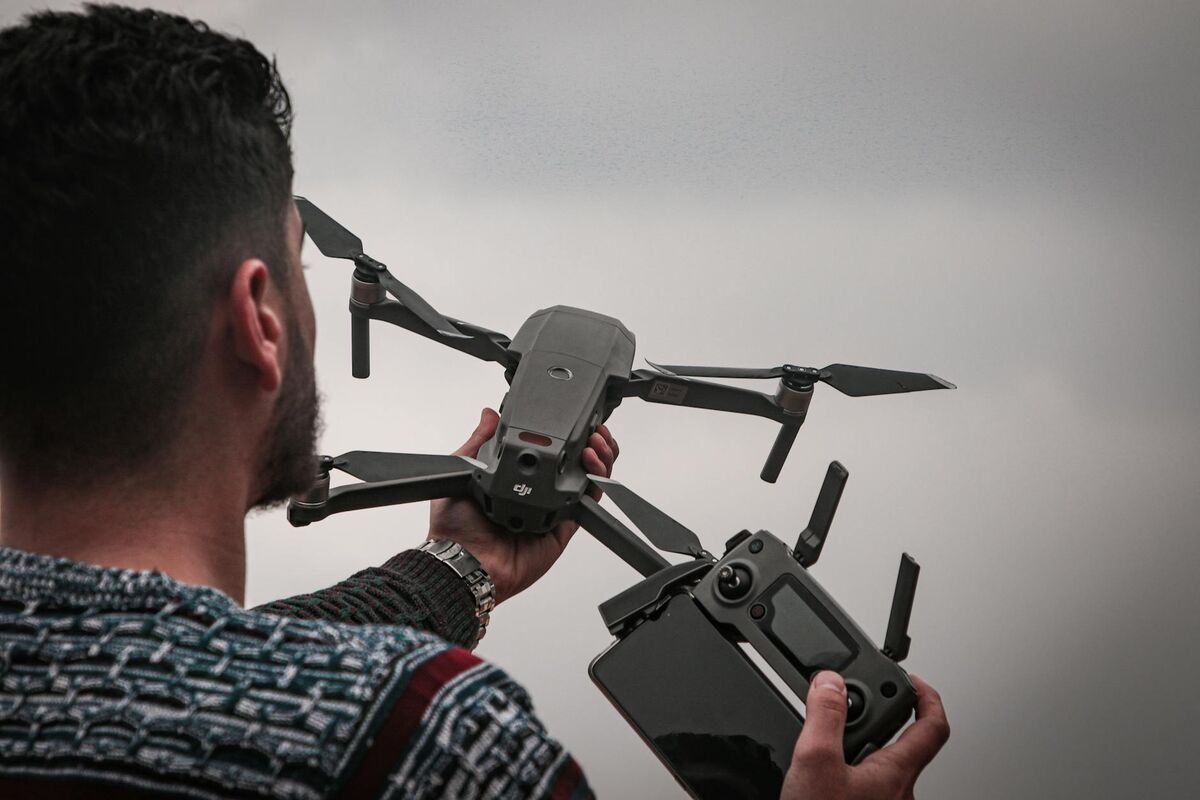
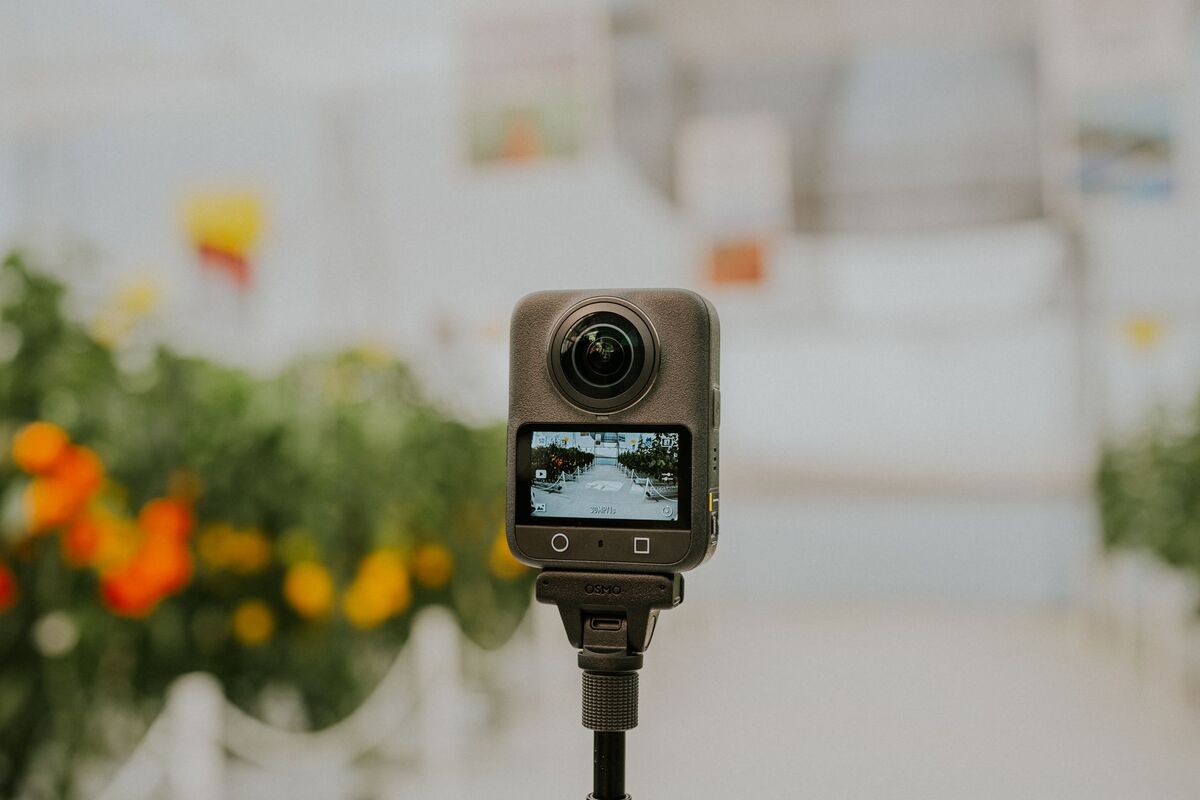
You don't need a high-end or proprietary camera to create a 360 virtual tour. Any consumer 360 camera that records spherical video, such as the Insta360 X4, Ricoh Theta Z1, or GoPro Max, works well. For outdoor or aerial tours, a standard drone produces footage that SkyeBrowse processes equally effectively.
Common 360 tour camera options:
Consumer 360 cameras (best for interiors)
- Insta360 X4: 8K 360 video, compact enough to hold on a selfie stick while walking
- Ricoh Theta Z1: professional-grade video, widely used in real estate
- GoPro Max: rugged, good low-light performance, familiar ergonomics
Drones (best for exteriors and large sites) Any drone recording overlapping video can feed SkyeBrowse's processing pipeline. The SkyeBrowse Flight App guides the capture path for supported DJI and Autel models; Universal Upload accepts .MP4 or .MOV from any other device. A list of tested drones is at skyebrowse.com/supported-drones.
Smartphones and action cameras A smartphone or action camera walking a slow, overlapping path also produces workable footage. The resulting model may be less detailed than a dedicated 360 camera capture, but the workflow is identical.
The key principle: you need continuous, overlapping coverage, not a single-shot panoramic image. Moving video gives the algorithm enough parallax data to reconstruct depth, which separates a true 3D tour from a flat 360 photo.

How do you record a 360 tour video?
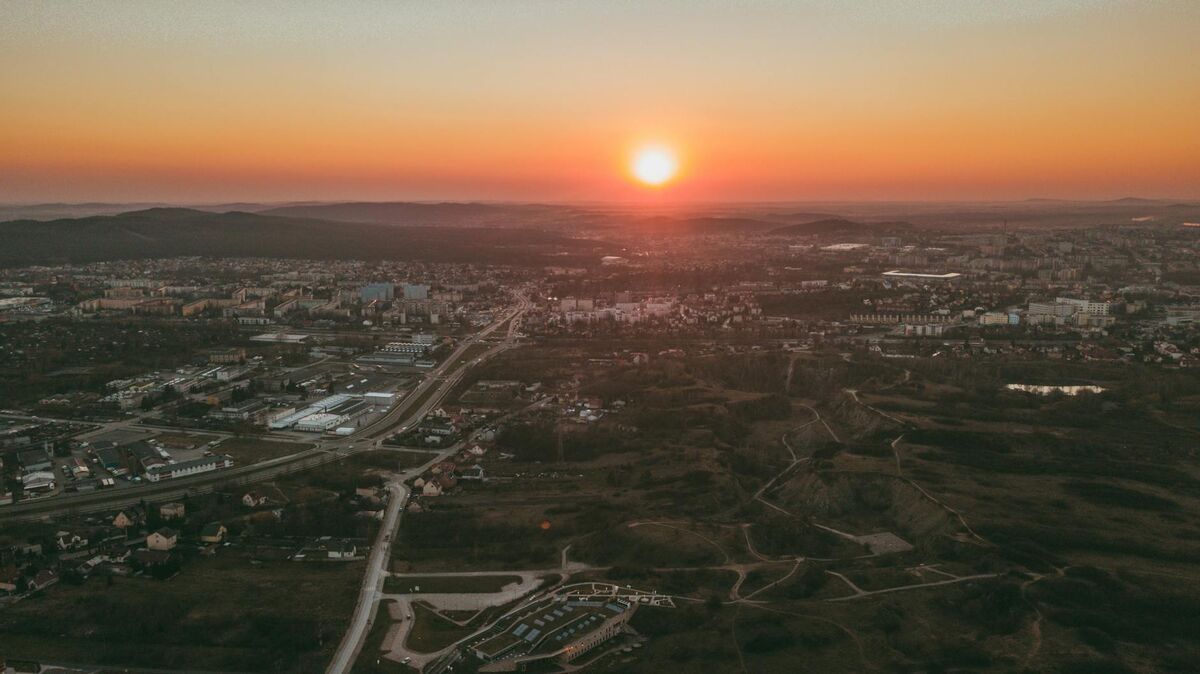
For an interior 360 tour, hold the camera at chest or head height and walk slowly through the space at a steady pace, roughly two to three feet per second. Cover every room, corridor, and area you want in the final model, overlapping your path slightly in larger spaces. For exterior tours, fly a drone in overlapping passes or an orbit pattern around the subject.
Interior capture checklist
- Turn on all interior lights. Consistent, even lighting prevents dark patches in the final model.
- Attach your 360 camera to a selfie stick or monopod to keep it above head-height obstructions.
- Start recording before you enter the first room.
- Walk at a slow, consistent pace. Sudden stops or fast turns reduce overlap and hurt model quality.
- Cover corners and doorways. These transition zones are where models often have gaps.
- Record a continuous clip without stopping the camera between rooms.
- Stop recording only after you have exited or returned to your starting point.
Exterior and drone capture
For a residential property, fly a slow orbit at 50–100 feet altitude around the structure, keeping the subject in frame throughout. Then fly a nadir (straight-down) pass over the rooftop. The two clips can be uploaded together. For larger sites (warehouses, construction zones, campuses), fly overlapping grid passes at a consistent altitude. SkyeBrowse's Interior Mapping upload mode is optimized for 360 camera footage, while the standard Universal Upload handles drone .MP4 and .MOV files from any source.
SkyeBrowse builds the tour from one continuous video, with no tripod stops or control points. Spatial geometry is derived directly from the video frames.
For a detailed walkthrough of the interior capture workflow, see the SkyeBrowse interior mapping tutorial and the introducing 360 interior mapping guide.
How do you upload and process your 360 footage?
Log in at app.skyebrowse.com, click New Model, and select Interior Mapping for 360 camera footage or Universal Upload for drone or action camera video. Drag in your .MP4 or .MOV file, name the model, and submit. SkyeBrowse's cloud infrastructure processes the footage and notifies you when the 3D model is ready, typically within minutes for standard interior captures.
Step-by-step upload walkthrough
- Go to app.skyebrowse.com and sign in (or create a free account).
- Click the upload button on your dashboard.
- Choose Interior Mapping if you used a 360 camera for an indoor walkthrough, or Universal Upload for drone, phone, or action camera footage.
- Select your video file (.MP4 or .MOV are both accepted).
- Enter a descriptive name for the model (property address, site name, date).
- Click Submit. Processing begins immediately in the cloud.
- You will receive a notification when the model is complete.
For most interior captures under 10 minutes of footage, processing completes quickly. You can close your browser and return later. The cloud handles everything without keeping your device running. There is no software to install and no GPU requirement. The free account provides unlimited basic models, so you can run through the full workflow on a test property at no cost.
The 360 Image Viewer feature in SkyeBrowse lets you review raw 360 frames alongside the generated model, useful for confirming coverage before sharing with a client.
How do you share a 360 virtual tour?
Once processing is complete, SkyeBrowse generates a shareable link for each model. You can send this link directly to clients, embed it in a listing, or use it in a presentation. Anyone with the link can navigate the 3D model in their browser, with no app download or account required on the viewer's end.
Sharing options
- Direct link: copy the model URL from your dashboard and paste into an email, message, or listing.
- Embed: SkyeBrowse models load in a standard browser iframe for websites, MLS listings, or project portals.
- Download: export as a GLB (3D mesh) or LAZ (point cloud) for use in CAD, GIS, or VR platforms.
For real estate professionals, a 3D walkthrough link outperforms static 360 photo tours because viewers can explore freely and take measurements. For guidance on using 360 tours in property marketing, see the real estate marketing overview and the best interior mapping software comparison.
Interactive, browser-native 3D environments tend to improve stakeholder comprehension compared to static image sets. This applies equally to real estate buyers, insurance adjusters, and facility managers reviewing a space remotely.
FAQ
Do I need a special camera to make a 360 virtual tour?
No specialist hardware is required. Any consumer 360 camera (Insta360, Ricoh Theta, GoPro Max) works, and so does standard drone, phone, or action camera video. SkyeBrowse accepts .MP4 and .MOV from all of these through its Universal Upload feature.
How long does it take to create a 360 virtual tour?
Capturing a typical interior space takes 5 to 15 minutes on foot. After upload, SkyeBrowse processes the video into a 3D model in minutes. You can share a live link the same day you record the footage.
What is the difference between a 360 photo tour and a video-based 3D tour?
A traditional 360 photo tour stitches still images taken from a tripod at each stop, requiring specialized software and manual hotspot placement. A video-based 3D tour built through videogrammetry processes continuous walkthrough footage into a full 3D model that viewers can navigate freely in any direction, not just between preset viewpoints. The video method is faster to capture and produces richer spatial data.
Can I create a 360 virtual tour of an exterior or large property?
Yes. For exteriors, fly a drone in slow overlapping passes or an orbit around the structure. SkyeBrowse processes the resulting video the same way as interior footage. No ground control points or RTK equipment are needed, which makes outdoor captures practical for properties of any size.
Is there a free way to try creating a 360 virtual tour with SkyeBrowse?
Yes. A free account at app.skyebrowse.com includes unlimited basic models. Upload your first video, process the model, and share the link, all at no cost. Premium tiers add higher accuracy outputs and advanced export formats.
Upload your first video free. Create a free SkyeBrowse account, upload a drone video, and get a 3D model processed in the cloud. Freemium organizations that have never had a paid plan can get their first full Commercial model for $5 (normally $24.99), with every Commercial tool, every export, and 90-day storage.